News desk: a fast roundup of practical Canva shortcuts, creative hacks, and hidden features that will speed up your workflow and lift the quality of your visuals. I gathered bite-sized tips from colleagues across product and education—Belle, Gina, Nate, Enza, Jonathan, Michaela, Andre, Denny, Ellie, and Nick—and pulled each trick apart so you can use it immediately. These aren’t theory. They are the exact moves I use when I need to brainstorm faster, present cleaner, create on the fly, or make a product photo look like it belongs in a fashion editorial.
Table of Contents
- 🧭 Group and sort brainstorm ideas in Whiteboards like Belle
- 🏜️ Make product shots look editorial with Gina’s Background Generator trick
- ⌨️ Command attention during presentations with Nate’s shortcut showstoppers
- 🚀 Open new designs instantly with Enza’s canva.new shortcut
- 🎨 Explore and apply color palettes with Jonathan’s colours page
- ✨ Add movement in seconds with Michaela’s Magic Animate trick
- 📝 Speed up prep with Andre’s AI-generated speaker notes
- 📋 Turn a sheet into a project brain with Denny’s slash commands
- 📱 Visualize Instagram grids faster with Ellie’s shuffle feature
- 🥁 Discover the hidden Sheets drum machine with Nick
- ✅ How I pull these tips together for real work
- 🧾 Quick reference: the shortcuts and pages I use most
- 🔍 Troubleshooting and common mistakes
- 📣 Final notes from the field
- ❓Frequently asked questions
🧭 Group and sort brainstorm ideas in Whiteboards like Belle
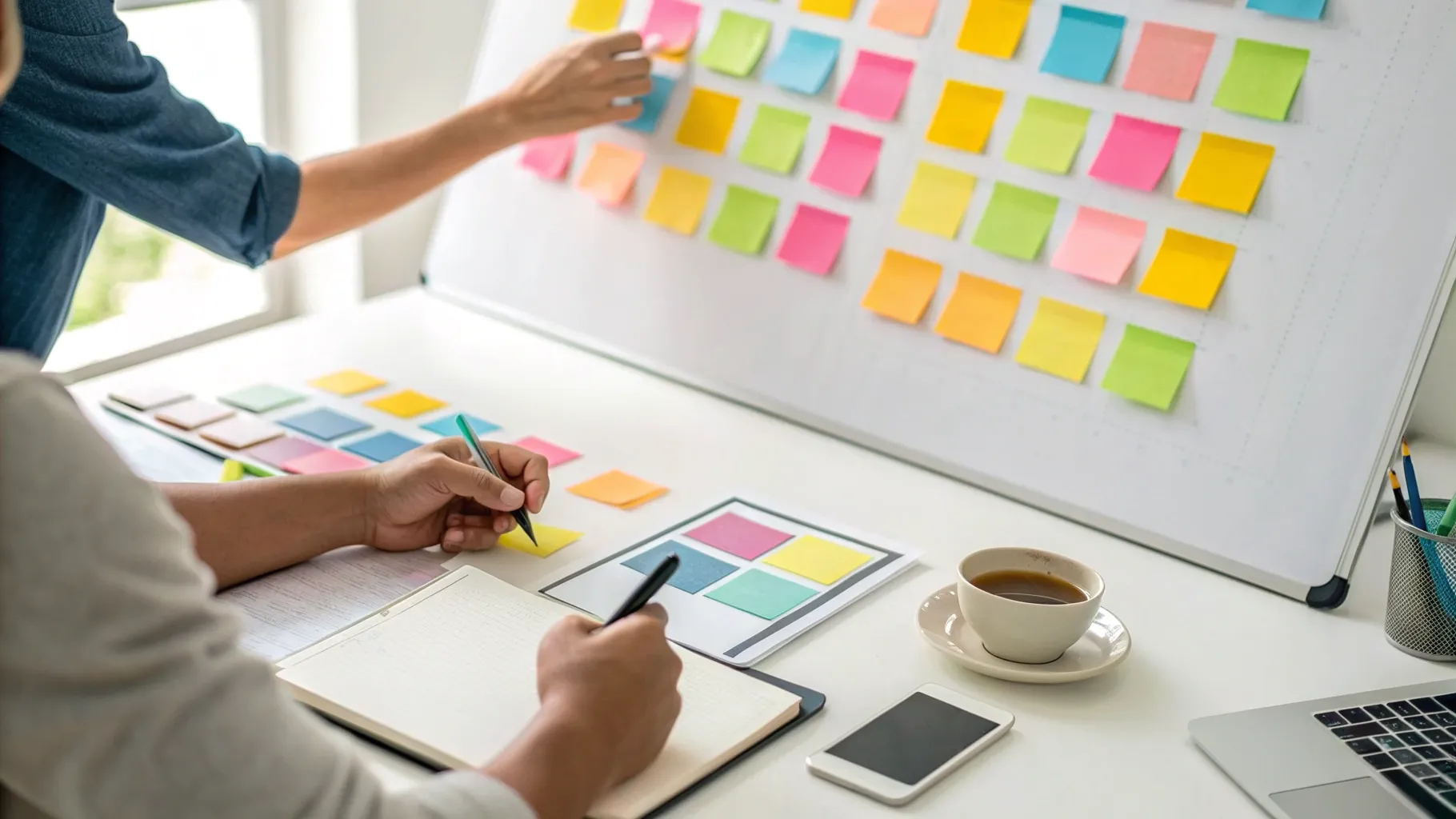
Belle showed me a tiny workflow improvement that saves a lot of time during any brainstorming session: use the Sort feature in Whiteboards to instantly cluster sticky notes by topic. If you run workshops, content planning sessions, or product ideation, this is a simple way to find themes and move to action without spending ages organizing manually.
How I use it in practice:
- I throw every idea onto sticky notes—no filtering or editing, just speed.
- I select all the stickies I want grouped, click the three dots, and choose Sort → By topic.
- Canva automatically groups similar ideas into clusters. I skim the groups, merge duplicates, and name each theme.
Why it works: automated grouping reduces cognitive load. Instead of trying to decide categories in the moment, you let the tool surface patterns. That means the team spends less time discussing placement and more time deciding which ideas to prototype first.
Quick pro tips:
- If the auto-groups are too broad, split the board into multiple smaller boards by theme and sort each one separately.
- Use different colored stickies for different types of inputs (e.g., user pain points, feature ideas, content topics) and then sort within those colors for layered organization.
- Export grouped stickies as a CSV or copy them into a project plan to turn themes into tasks quickly.
🏜️ Make product shots look editorial with Gina’s Background Generator trick
Gina’s favorite trick is deceptively simple: use the Background Generator on an isolated product image to embed it into a real-life scene. This replaces mundane studio shots with something that feels moodier and more professional without hiring a photographer or leaving your desk.
Step-by-step:
- Upload or select your product photo and remove its background if needed.
- Click Edit and choose Background Generator.
- Type a scene prompt (for example "desert sunset with soft golden light" or "urban rooftop at dusk") and click Generate.
- Pick the best option and then use the Lighting control—set to Maximum relight to blend shadows, highlights, and color temperature so the product truly looks part of the scene.
When to use it:
- Product listings that need richer lifestyle context.
- Social ads and hero images where mood sells better than pure product specs.
- Mockups for pitches when you want to communicate brand positioning quickly.
Pro photographer-level moves:
- Match the light direction: if your original product photo has a shadow on the left, use a scene prompt that implies light from the same direction to make the composite believable.
- Use subtle vignette and color grade filters to unify the final composition.
- Export a few variations and A/B test them on your audience—sometimes a gritty backdrop outperforms a soft pastel for conversion.
⌨️ Command attention during presentations with Nate’s shortcut showstoppers
Nate taught me to use live shortcuts during presentations to keep attention and add a little theater. These are small audio and visual cues that work like pulse checks: they snap people back to focus, highlight a reveal, or celebrate a milestone.
Shortcuts I use and why:
- Q for a quick “shh” sound to quiet chatter before a key point.
- D to trigger a drum roll right before a reveal or metric.
- C for confetti when you want to celebrate completion, a launch, or a major win.
How to find more shortcuts: press K or open the keyboard shortcuts menu from the presentation toolbar—practice once and they’ll become second nature.
Tips for professional settings:
- Use sparingly. Too many sound effects dilute their impact.
- Match the cue to the moment. Drum roll for a product feature reveal, confetti for team wins, and quiet cues for transitions.
- If you’re presenting to external stakeholders, test audio levels in advance so effects are crisp but not disruptive.
🚀 Open new designs instantly with Enza’s canva.new shortcut
Enza shared one of my favorite productivity habits: type canva.new in your browser to instantly open a blank canvas. It’s a tiny habit with big time-savings—especially when you need to capture an idea fast or prep multiple assets back-to-back.
Variants to speed your flow:
- canva.new/presentation to start a deck immediately.
- canva.new/website to start a website layout.
- Swap the path for docs, whiteboards, or sheets depending on what you use most.
Use cases:
- I use canva.new between meetings to quickly sketch a concept and drop it into the meeting notes.
- When I’m managing multiple social posts, I open several canva.new tabs—each for a different format—to batch-create faster.
Pro tip: pin canva.new as a bookmark or set it as your new tab for instant creative access.
🎨 Explore and apply color palettes with Jonathan’s colours page
Jonathan pointed me to a little hub that’s a color lover’s secret weapon: canva.com/colours. It’s a curated repository of palettes, trending color combos, and tools to extract palettes from images.
How I use it:
- Scan the recommended palettes to spark a new direction for seasonally themed content.
- Screenshot a palette I like, upload it, and then right-click on a color and choose Apply to page to quickly set the mood across an entire design.
- Use the palette generator on a brand photo to maintain color harmony across marketing materials.
Why this matters: consistent color choices are an immediate brand signal. Investing a few minutes in picking the right palette pays dividends in perceived quality and cohesion.
Quick decisions I make based on palette choice:
- Warm, muted palettes for lifestyle and wellness brands.
- Bold, saturated palettes for tech launches and short-form social videos.
- Two-tone duotones for minimalist product pages.
✨ Add movement in seconds with Michaela’s Magic Animate trick
Michaela showed me how Magic Animate turns static slides into engaging motion with almost no effort. It’s perfect when you need animation but don’t have motion design skills or time to create keyframes.
How to apply Magic Animate:
- Click on the page you want to animate.
- Choose Animate, then select Magic Animate.
- Pick a suggested style. Michaela often uses the Handmade style for a stop-motion, tactile feel.
When to use it:
- Social posts where motion boosts reach.
- Explainer slides to keep attention across complex ideas.
- Low-effort intros and outros for video content.
Practical animation tips:
- Keep animations short. 2 to 4 seconds per animated slide is usually optimal for social and presentations.
- Combine Magic Animate with timed audio for added polish.
- Preview on mobile to ensure motion reads well on small screens.
📝 Speed up prep with Andre’s AI-generated speaker notes
When I’m under time pressure Andre’s approach is my go-to: use AI-generated speaker notes inside the Notes panel. It turns a rough slide deck into a presentable talk quickly.
How it works:
- Open the Notes panel for your presentation.
- Click Generate notes and let AI create a draft aligned to your slide content.
- Use the Actions menu to Shorten, Rewrite, or change tone—make it more formal, more fun, or punchier.
Why I use this:
- It’s faster than writing notes from scratch, especially for status updates and internal demos.
- It gives a structured starting point you can edit to match your voice.
- Good for teams who need talking points that non-presenters can deliver with confidence.
Ethical and best-practice reminders:
- Always review and adapt AI-generated text so it reflects your thinking and corrects factual or contextual errors.
- Use AI notes as a draft, not the final voice. Personal anecdotes and data specifics still need to come from you.
📋 Turn a sheet into a project brain with Denny’s slash commands
Denny introduced a deceptively powerful workflow inside Sheets: the magic of the forward slash. It’s like a command palette for your spreadsheet that creates rich column types and embeds metadata instantly.
What you can do with the slash command:
- Type /date to insert a date picker.
- Type /checkbox for quick task tracking.
- Type /mention to tag a teammate right in a cell.
- Insert links, dropdowns, and other structured data types without hunting through menus.
How I use it in planning:
- Create a content calendar with columns for status, owner, due date, and asset link—each created with a slash command in seconds.
- Use checkboxes for quick standups and then filter the sheet to show open items only.
- Turn a sheet row into a mini ticket by adding a comments column and assigning the owner via mention.
Productivity hack:
- Combine slash commands with color-coded conditional formatting so rows change color based on status automatically.
- Use the sheet as a single source of truth and connect it to your design files with links so nothing gets lost in folders.
📱 Visualize Instagram grids faster with Ellie’s shuffle feature
Ellie’s grid hack is the kind of tiny UX detail that becomes indispensable: select all your Instagram images in a grid layout and use the shuffle handle to swap photos around. This helps you preview composition, color balance, and narrative flow without exporting or manual dragging.
How I use it:
- Lay out the nine or twelve images I’m considering for a feed theme.
- Select them and click the shuffle icon that appears to mix positions until the overall aesthetic feels right.
- Lock in a sequence and export each tile at the right size for upload.
Why designers love it:
- It speeds up experimentation—try dozens of permutations in a few clicks.
- It reduces the cognitive load of deciding which post should go next.
- You can preview how the grid tells a visual story across rows and columns.
🥁 Discover the hidden Sheets drum machine with Nick
Nick showed me a delightful example of creativity hidden inside Sheets. Type canva.me/SheetFreak2000 and you’ll find a playful drum machine built in the sheet. It’s a reminder that tools have hidden corners worth exploring.
Why this matters beyond fun:
- It’s a great team icebreaker during retrospectives or creative standups.
- It shows how flexible sheets can be for interactive content, not just rows and columns.
- It’s an easy way to inject energy into a meeting and keep people engaged.
Creative ways to use it:
- Use the drum machine to mark sprint celebrations or wins during demos.
- Embed simple rhythm loops into learning activities or onboarding demos to make them memorable.
✅ How I pull these tips together for real work
When I’m prepping a launch or a heavy content week, I stitch together several of these hacks into a simple workflow:
- Brainstorm ideas quickly on a Whiteboard and sort by topic to find themes (Belle).
- Create a content plan in Sheets using slash commands for owner, due date, and status (Denny).
- Open a new canvas with canva.new to draft post designs and hero images (Enza).
- Pick a color palette on canva.com/colours to keep visuals consistent (Jonathan).
- Use Background Generator to place product shots into mood scenes for hero images (Gina).
- Add Magic Animate to one or two posts for motion that performs better on socials (Michaela).
- Prepare a short presentation with AI speaker notes to hand off to another presenter if needed (Andre).
- Shuffle Instagram tiles to finalize feed sequencing (Ellie) and celebrate the final assets with a little confetti during the review (Nate).
That workflow isn’t rigid. I pick and choose the hacks based on goals: speed, polish, or collaboration. The point is to reduce friction so creativity gets out of my head and into people’s hands before the moment passes.
🧾 Quick reference: the shortcuts and pages I use most
Here’s a cheat sheet I keep handy so I don’t have to remember everything all the time:
- canva.new — open a new design instantly.
- canva.com/colours — browse palettes and extract colors.
- Background Generator — embed isolated products into scenes.
- Magic Animate — turn slides into motion quickly.
- Notes → Generate notes — AI speaker notes as a starting point.
- Sheets forward slash — create column types, mentions, checkboxes fast.
- Presentation shortcuts: K to view all, Q for quiet, D for drum roll, C for confetti.
🔍 Troubleshooting and common mistakes
Even with the best tools, people trip up on the same tiny things. Here are common mistakes I see and how to avoid them.
Export issues and wrong sizes
Always double-check export dimensions for each platform. A hero image sized for a website may not work as a story or ad. Create separate pages from the same design—use canva.new or duplicate the page—and export each to the correct size.
Bad blends in Background Generator
If the product looks pasted into the scene, check lighting direction and color temperature. Use the Relight control and subtle vignette to ground the subject. If necessary, manually add a shadow layer for realistic weight.
Overdone animations
Too much motion distracts. Pick one or two animated elements per asset and keep durations short. Preview on mobile to ensure animations remain legible.
Trust but verify AI notes
AI will draft coherent notes but can hallucinate specifics like dates or metrics. I always cross-check facts and inject personal examples.
📣 Final notes from the field
These tips are tactical: they save minutes or hours and make work feel sharper. The best part is how easy many of them are to adopt. They don’t require a steep learning curve—just a willingness to try a new button or two. I use these weekly, sometimes daily, and they consistently speed me up or raise the polish of the final asset.
If you want more structured learning, there are full lessons and certifications at canva.com/design-school where you can build deeper skills from beginner to advanced.
❓Frequently asked questions
How do I sort sticky notes by topic in Whiteboards?
Select the stickies you want to organize, click the three-dot menu, choose Sort, then select By topic. Canva will automatically group similar ideas into clusters that you can rename, merge, or move.
Can I use Background Generator with any product image?
Yes, as long as the product is isolated or has a removed background. For best results, use high-resolution images and adjust the Relight or shadow settings so the subject blends naturally with the generated scene.
What presentation shortcuts should I learn first?
Start with K to open the shortcuts cheat sheet. Then learn Q for a quiet sound, D for a drum roll, and C for confetti. These are the easiest to incorporate into live presentations for emphasis and engagement.
What does canva.new actually open by default?
canva.new opens a new blank design. You can append a path like /presentation, /website, or /whiteboard to open a specific type directly.
How do I extract and apply colors from an image quickly?
Use canva.com/colours to generate palettes. You can screenshot or upload an image into the palette tool, extract colors, then right-click a color and choose Apply to page to set it across your design.
Can Magic Animate replace a motion designer?
Magic Animate is a powerful tool for quick motion and can produce professional-looking results for many use cases. It’s not a complete replacement for bespoke motion design on complex projects, but it’s excellent for rapid iteration and content destined for social and presentations.
How accurate are AI-generated speaker notes?
They provide a strong draft and structure but should always be reviewed. Check facts, personalize examples, and adjust tone to match your delivery. Use the Actions tools to shorten or rewrite as needed.
What are slash commands in Sheets and why use them?
Slash commands let you create column types like date, checkbox, mention, and link without digging through menus. They speed up setup for project planning and make sheets more interactive and useful as a single source of truth.
Is the Sheets drum machine safe to use in team docs?
Yes, it’s a playful embedded feature designed for fun and engagement. Treat it like any shared interactive element and use it to introduce levity to meetings or team rituals.
Where can I learn more advanced techniques in Canva?
Check out canva.com/design-school for lessons, tutorials, and structured certifications that go from design fundamentals to advanced workflows and brand systems.


